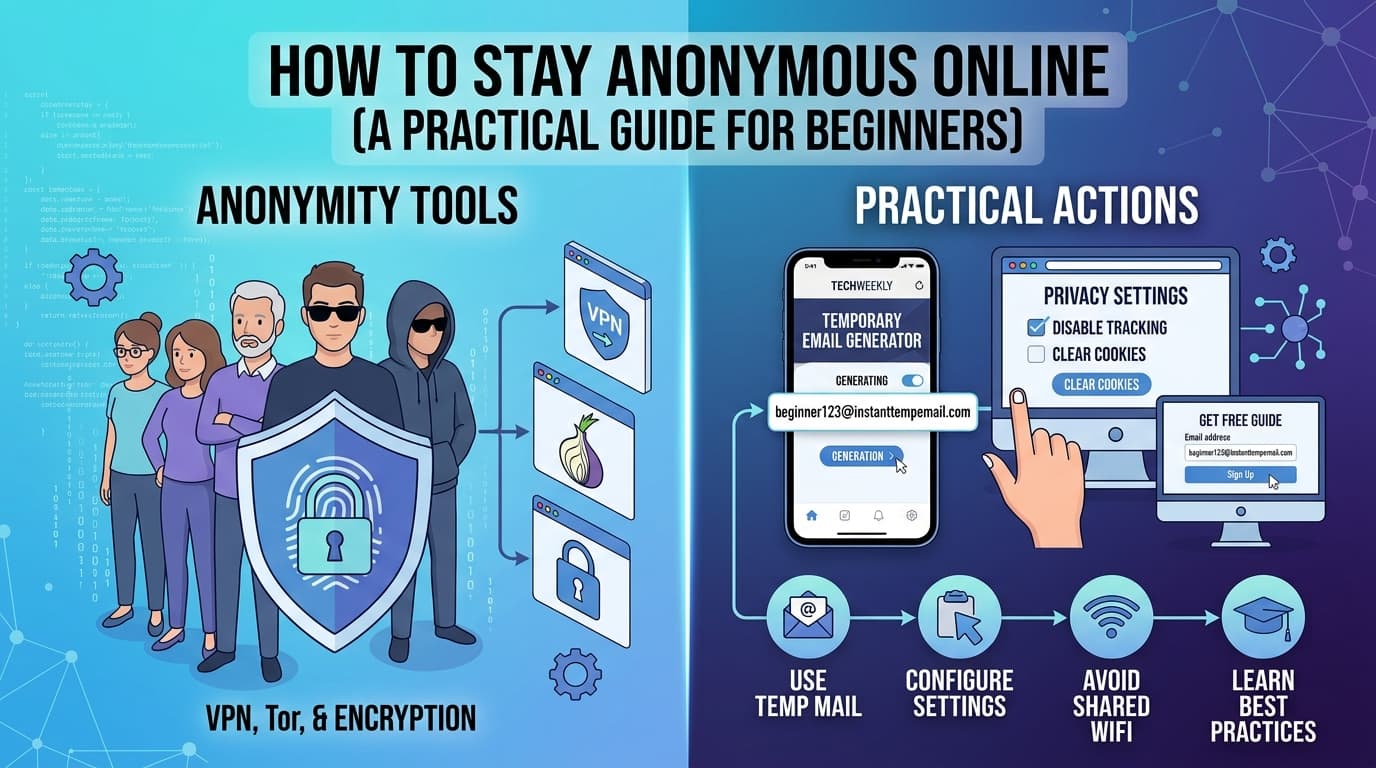
Complete anonymity online is nearly impossible. But meaningful privacy — significantly reducing what companies, advertisers, and data brokers know about you — is achievable without technical expertise and without giving up the tools you use every day.
This guide focuses on practical steps that have real impact, ordered from easiest to implement to most involved.
What "Anonymous Online" Actually Means
Before diving into tools, it's worth being precise about what you're protecting against, because the answer changes which tools matter.
Tracking by advertisers and data brokers — Companies like Google, Meta, and thousands of smaller data brokers build detailed profiles of your behavior, interests, location, and identity. They use this to target ads and sell data.
Tracking by the sites you visit — Websites log your IP address, browser fingerprint, and behavior. This data is often shared with third-party analytics and advertising networks.
Exposure through signups and registrations — Every account you create gives a company your email address, and often more. These get breached, sold, and aggregated.
Surveillance by your ISP — Your internet service provider can see every domain you visit (even if not the specific pages over HTTPS). In many countries they're legally required to retain and potentially share this data.
Targeted attacks — Someone specifically trying to find information about you, doxx you, or access your accounts.
Most people need protection from the first three. This guide focuses there.
Step 1: Control What Email You Give Out (Highest Impact, Easiest)
Your email address is the most persistent identifier linking your online activity. It follows you across devices, browsers, and years.
Use a temporary email for one-time signups. Any time you need to enter an email to download something, access content, or create an account you'll use once — use a disposable address from InstantTempEmail. Takes 10 seconds. Your real address stays clean.
Use a permanent alias for ongoing accounts you want privacy for. Services like SimpleLogin (free, open source) create forwarding aliases. You give websites the alias; they never see your real address. If an alias starts getting spammed, disable it.
Keep one real address for things that matter. Banking, healthcare, government, close personal contacts. This address never goes into a random signup form.
This three-tier approach costs nothing and immediately reduces spam, breach exposure, and cross-service tracking.
Step 2: Use a Privacy-Focused Browser
Your browser leaks an enormous amount of information by default — your IP address, installed fonts, screen resolution, timezone, browser version, and dozens of other signals that combine into a "fingerprint" that can identify you even without cookies.
Firefox is the best mainstream browser for privacy. With a few configuration changes, it blocks most tracking:
Go to Settings → Privacy & Security → set Enhanced Tracking Protection to Strict.
Also install these extensions:
- uBlock Origin — blocks ads and trackers at the network level
- Firefox Multi-Account Containers — isolates different activities (shopping, social, banking) so they can't track each other
Brave is a Chromium-based browser with aggressive tracking protection built in by default. Less configuration required than Firefox. Good for users who want privacy without setup.
Avoid Chrome for private browsing. Chrome is made by Google, whose primary business is advertising. It sends data to Google by default and its privacy features are limited.
For maximum anonymity on specific tasks: Tor Browser routes your traffic through multiple relays, masking your IP address and defeating most fingerprinting. It's slow and breaks some sites, so it's not practical for everyday browsing — but it's the right tool when you genuinely need strong anonymity.
Step 3: Use a Search Engine That Doesn't Track You
Google logs every search query you make, links it to your account (if signed in) or your IP fingerprint (if not), and uses it to build your advertising profile.
DuckDuckGo — the most accessible privacy-respecting alternative. Results are good for most everyday queries. No tracking, no filter bubble.
Startpage — returns Google results without Google seeing who searched. Useful if you want Google's result quality without Google's tracking.
Brave Search — independent index (not relying on Google or Bing). Growing rapidly and good for most queries.
Switch your default search engine in your browser settings. The change takes 30 seconds and immediately stops search query tracking.
Step 4: Use a VPN (For the Right Reasons)
A VPN hides your IP address from the sites you visit and hides your browsing activity from your ISP. It routes your traffic through a server operated by the VPN provider.
What a VPN does:
- Hides your real IP address from websites
- Prevents your ISP from seeing which domains you visit
- Protects you on public Wi-Fi networks
What a VPN does NOT do:
- Make you anonymous to websites you're logged into
- Protect against browser fingerprinting
- Prevent tracking via cookies
- Hide your identity from the VPN provider itself
The VPN provider can see all your traffic — you're replacing trust in your ISP with trust in the VPN company. Choose carefully.
Reputable options:
- Mullvad — accepts cash and crypto, no account email required, strong no-logs policy, audited
- ProtonVPN — Swiss-based, open source, free tier available, audited
- IVPN — privacy-focused, audited, no-logs
Avoid free VPNs. The business model almost always involves selling user data.
Step 5: Use Strong, Unique Passwords With a Password Manager
Reusing passwords across services means one breach exposes all your accounts. A password manager solves this completely.
Bitwarden — open source, free tier is genuinely complete, can self-host if desired. The best free option.
1Password — paid, excellent UX, strong security model. Worth the cost for users who want a polished experience.
How to use one:
- Install the browser extension and app
- Import or manually add your existing accounts
- For every new account, use the password manager's generator to create a random 20+ character password
- Never type or remember passwords — let the manager fill them
With unique passwords, a breach at any one service can't be used to access any other service.
Step 6: Enable Two-Factor Authentication
Two-factor authentication (2FA) requires a second verification step beyond your password. Even if an attacker has your password, they can't log in without the second factor.
Authenticator app (recommended): Google Authenticator, Authy, or the 2FA feature built into most password managers generates a time-based code. Enable this on all accounts that support it, starting with: email, banking, social media, password manager itself.
Hardware key (strongest): A physical device like a YubiKey plugs into your computer or taps your phone. Resistant to phishing because the key cryptographically verifies the site URL. Overkill for most people, but worth considering for high-value accounts.
SMS (weakest, but better than nothing): A code sent to your phone. Better than no 2FA. Vulnerable to SIM-swapping attacks. Upgrade to an authenticator app when possible.
Enable 2FA here first, in order of priority:
- Your primary email account
- Your password manager
- Banking and financial accounts
- Social media accounts
- Everything else
Step 7: Reduce Your Social Media Footprint
Social media platforms are the most aggressive collectors of personal data. They track you across the web even when you're not on their sites, via tracking pixels embedded in other websites.
You don't have to delete accounts, but you can limit exposure:
Check and tighten privacy settings. On every platform you use, go through privacy settings and limit who can see your profile, posts, and contact information. Remove your phone number if it's listed.
Log out of social media accounts when not using them. Logged-in sessions allow the platform to track you across other sites via tracking pixels. Logged out, that tracking is much harder.
Use Firefox containers (or Brave's equivalent) to isolate social media. Facebook Container (Firefox extension) specifically isolates Facebook activity so it can't track you on other sites.
Audit connected apps. On each platform, check which third-party apps have access to your account. Revoke everything you don't actively use.
Step 8: Be Careful With Your Phone Number
Phone numbers are increasingly used as identity anchors — they're harder to change than email and tied to your real identity via carrier records.
Don't give your real number to services that don't need it. Most apps that ask for a phone number don't have a legitimate need for it — they want it for advertising targeting and account recovery that happens to also benefit them.
Use a second number for non-essential services. Google Voice (US) provides a free secondary number. MySudo and other apps provide more privacy-focused alternatives. Use a secondary number for any signup that requires a phone number but doesn't genuinely need your real one.
Be cautious with SMS 2FA. SIM-swapping — convincing a carrier to transfer your number to an attacker's SIM — is a real attack vector. High-profile accounts should use authenticator apps instead of SMS for 2FA.
Building Your Privacy Stack: A Practical Starting Point
You don't need to implement everything at once. Here's a prioritized sequence:
Week 1 (30 minutes total):
- Start using InstantTempEmail for throwaway signups
- Switch your default search engine to DuckDuckGo
- Install uBlock Origin in your browser
Week 2 (1 hour):
- Set up Bitwarden and start migrating passwords
- Enable 2FA on your email and banking accounts
- Set Firefox Enhanced Tracking Protection to Strict
Month 2 (2-3 hours):
- Set up SimpleLogin for email aliases
- Consider a reputable VPN for general browsing
- Audit social media privacy settings and connected apps
Each step compounds the others. The combination of disposable emails, unique passwords, 2FA, and a tracking-blocking browser closes the vast majority of common privacy vulnerabilities.
Frequently Asked Questions
Does using incognito mode make me anonymous? No. Incognito mode prevents your browser from saving history, cookies, and form data locally. It does not hide your IP address from websites, prevent your ISP from seeing your traffic, or block tracking. It's useful for keeping browsing private from other people who use the same device — nothing more.
Can websites still track me if I use a VPN? Yes, if you're logged in. Logging into Google, Facebook, or any account while using a VPN means that service knows it's you, regardless of IP address. A VPN only helps for sites where you're not authenticated.
Is Tor legal? Yes, in most countries. Tor is a privacy tool developed with US government funding and used by journalists, activists, and ordinary privacy-conscious users worldwide. Using Tor is legal in most jurisdictions. What you do with it is subject to normal laws.
How do I know if a VPN is actually trustworthy? Look for: independent security audits (results published), a clear no-logs policy verified by audit or legal action (providers who've been subpoenaed and had nothing to hand over), business model transparency (paying for the service, not ad-supported), and jurisdiction (outside of 14 Eyes countries for maximum legal protection).
Is it too late if I've already given out my real email everywhere? No. You can't undo past exposure, but you can stop adding to it today. Creating a fresh email address for financial accounts and using disposable emails going forward limits future damage even if past data is already out there.